How to Install IPTV on iPhone and iPad
Watch US channels, sport and films on your iPhone or iPad at home or on the go. Set up in minutes and test free for 2 hours.
- Free test: 2 hours
- 1 screen / 2 screens / 3 screens
- Card, PayPal
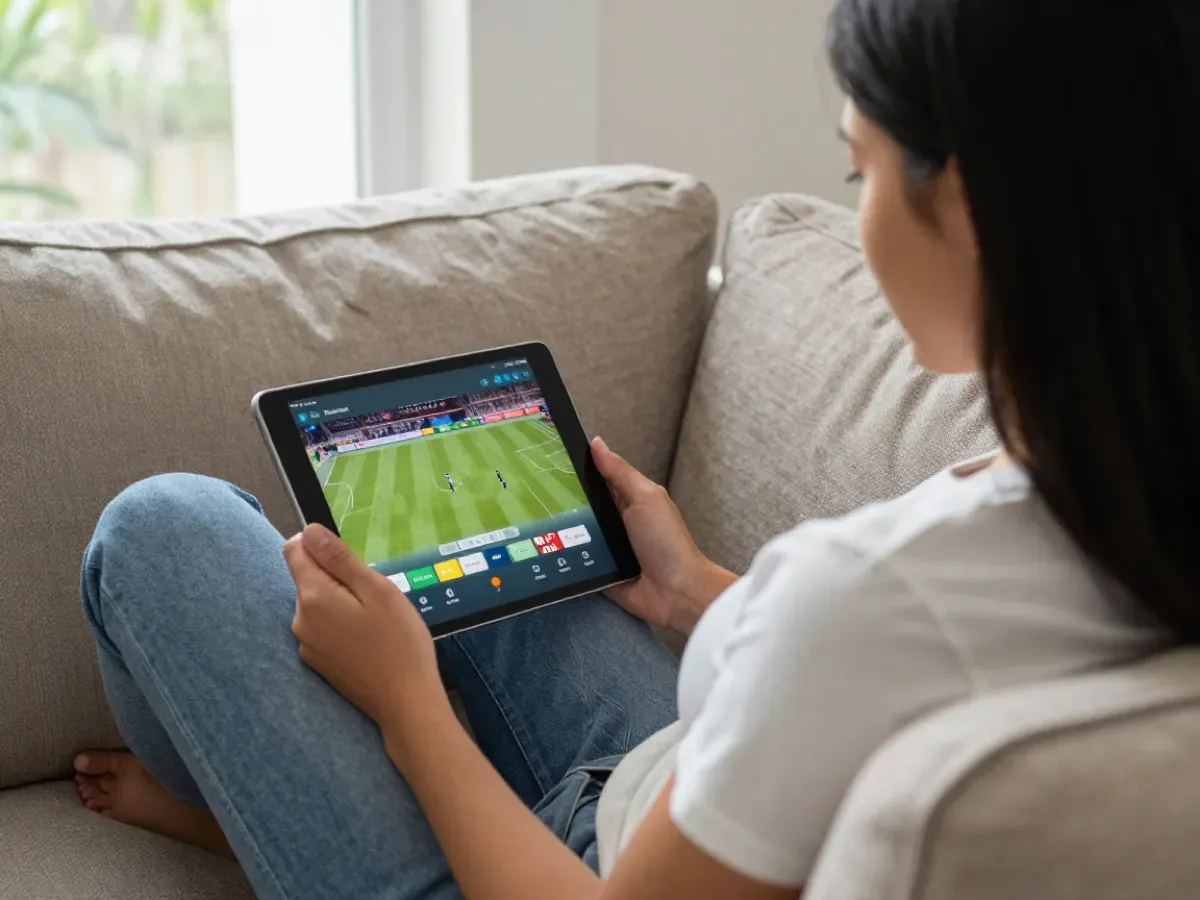
How to set up IPTV on an iPhone or iPad
Your iPhone and iPad are great second screens: watch the game in the kitchen, the news in bed or cartoons on a long drive. Setup takes about 5 to 10 minutes and you only do it once per device. It works the same on iPad.
On iPhone and iPad we recommend IBO Player Pro when it is available in your App Store. Good alternatives are GSE Smart IPTV and Smarters Player Lite, which also accept your Xtream login or M3U link.
Have ready: your iPhone or iPad with a recent iOS version, Wi-Fi or mobile data of about 10 Mbps for HD, and the login we send on WhatsApp or Telegram, for your plan or for the free 2-hour test.
The order: install the player from the App Store (it takes a minute), choose Xtream Codes login, enter the username, password and server URL we sent, then set the best settings. On mobile data, choose a lower quality to save data. If a step looks different on your screen, send us a screenshot on WhatsApp and we guide you until the channels play.
Good to know: your favorites and settings stay saved inside the app, so after this first setup you only open it and watch. At home, Wi-Fi gives the steadiest picture; away from home, mobile data works too. If you also want IPTV on the big screen, the same login works on your Smart TV or Fire TV Stick, and each device playing at the same time uses one screen of your plan.
What you need for iPhone and iPad
- iPhone or iPad with a recent iOS or iPadOS version
- Wi-Fi or mobile data, about 10 Mbps for HD
- A player app from the App Store
- Your login from us: Xtream details or M3U link
- About 5 to 10 minutes
Step-by-step install on iPhone and iPad
- 01
Open the App Store
On your iPhone or iPad, open the App Store and tap Search.
- 02
Install a player
Search IBO Player Pro. If it is not listed, install GSE Smart IPTV or Smarters Player Lite, then open the app.
- 03
Choose Xtream login
In the app, choose Xtream Codes or Login with Xtream, the most stable way to add your account.
- 04
Enter your details
Type the username, password and server URL we sent exactly as written, then tap Add or Login.
- 05
Load and watch
Wait for channels, films and the TV guide to load, then mark your favorite channels with the star.
Best app on iPhone and iPad
IBO Player Pro (recommended)
Our first choice when it is in your App Store: clear guide and fast channel change. Send us the MAC and key it shows, or use your login.
GSE Smart IPTV
A solid backup that accepts Xtream logins and M3U links, with a TV guide and favorites.
Smarters Player Lite
A simple player for Xtream logins, good for phones. Add your account and watch.
Troubleshooting on iPhone and iPad
My iPhone says login failed
Check the username, password and server URL letter by letter, including http and the port. Make sure your plan or test is active. Still failing? Send us a screenshot on WhatsApp.
IPTV buffers on mobile data
Mobile signal changes as you move. Switch the stream quality to Auto or HD, or use Wi-Fi when you can. About 10 Mbps is needed for HD.
The TV guide is empty
Reload or update the EPG in the app settings and wait a minute. Check that your iPhone's time zone is set automatically. If it stays empty, message us and we refresh the guide for your account.
No sound when I play a channel
Check the silent switch and volume, then change the audio track in the player. Restart the app if the issue stays.
The app closes by itself
Update the app and iOS, close other apps and restart the iPhone or iPad. Your login stays saved in most players.
Questions about IPTV on iPhone and iPad
01Can I watch IPTV on my iPhone away from home?
Yes. Your login works anywhere with internet, on Wi-Fi or mobile data. Watch the game on the train or the news on vacation.
02Which app is best for IPTV on iPhone?
IBO Player Pro when it is in your App Store; otherwise GSE Smart IPTV or Smarters Player Lite. All three accept your Xtream login.
03Does the iPad count as a screen?
Yes. Each device playing at the same time uses one screen of your plan. Choose 1, 2 or 3 screens, or a custom number.
04How much data does IPTV use on my phone?
It depends on quality: HD uses much more data than SD. On mobile data, set the quality lower or use Wi-Fi for long viewing. Many players also let you limit quality on mobile data only, which keeps your monthly data plan under control.
05Can I cast from my iPhone to the TV?
Some players support AirPlay to an Apple TV or AirPlay TV. For the best stability, install the app directly on the TV device.
Test it free on your iPhone or iPad
We offer a free 2-hour test before you order. Ask for your test login, or go back to all setup guides.
- Free test: 2 hours
- Card
- PayPal