IPTV Firestick:
How to Install It in 10 Minutes
A clear guide for Fire TV Stick and Fire TV Cube with the best app and settings. Test it free for 2 hours on your own stick.
- Free test: 2 hours
- 1 screen / 2 screens / 3 screens
- Card, PayPal
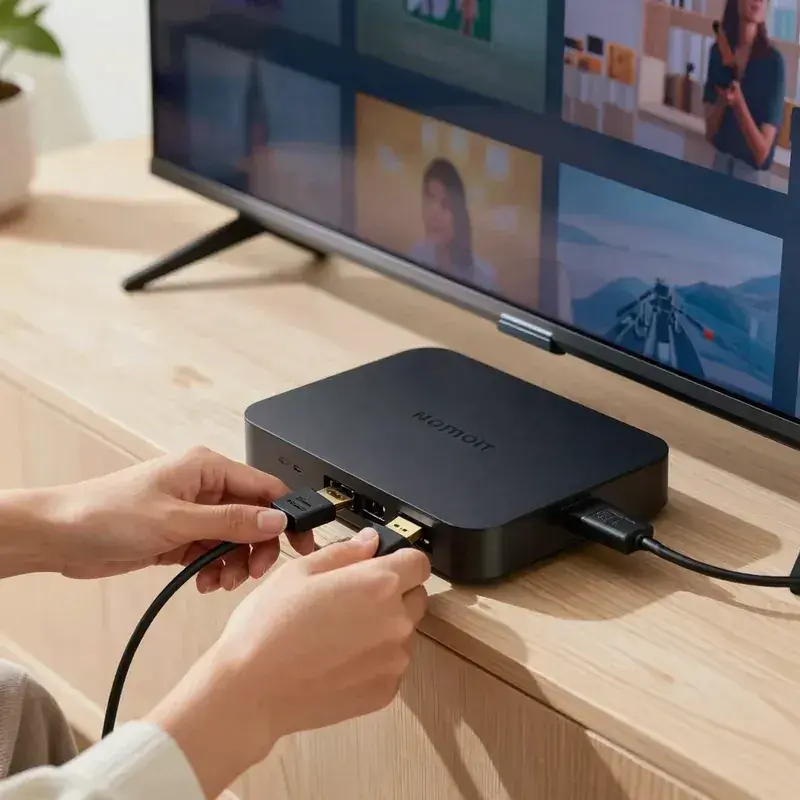
How to set up iptv firestick in plain words
Setting up iptv firestick takes about 10 minutes and you only do it once. You use the Fire TV Stick you already own, install one app and add the login we send you.
The app we recommend is IBO Player Pro, with HotPlayer as the second choice. Both give a clean channel list, a full TV guide and stable playback on Fire TV, which also makes them the best iptv for firestick users who want a cable-like experience.
Have three things ready: your Fire TV Stick connected to the TV, internet of about 10 Mbps for HD or 25 Mbps for 4K, and the login we send on WhatsApp or Telegram, either for your paid plan or for the free 2-hour test.
The steps follow this order: turn on developer options, allow the Downloader app, install IBO Player Pro or HotPlayer, then add your login and choose the best settings. If a step does not match your screen, send us a photo on WhatsApp and we guide you. Most customers finish on the first try and are watching the same evening.
What you need for Fire TV Stick
- Amazon Fire TV Stick or Fire TV Cube, updated
- Internet of about 10 Mbps for HD, 25 Mbps for 4K
- The Downloader app from the Amazon Appstore
- Your login from us: Xtream details or M3U link
- About 10 minutes
Step-by-step install on Fire TV Stick
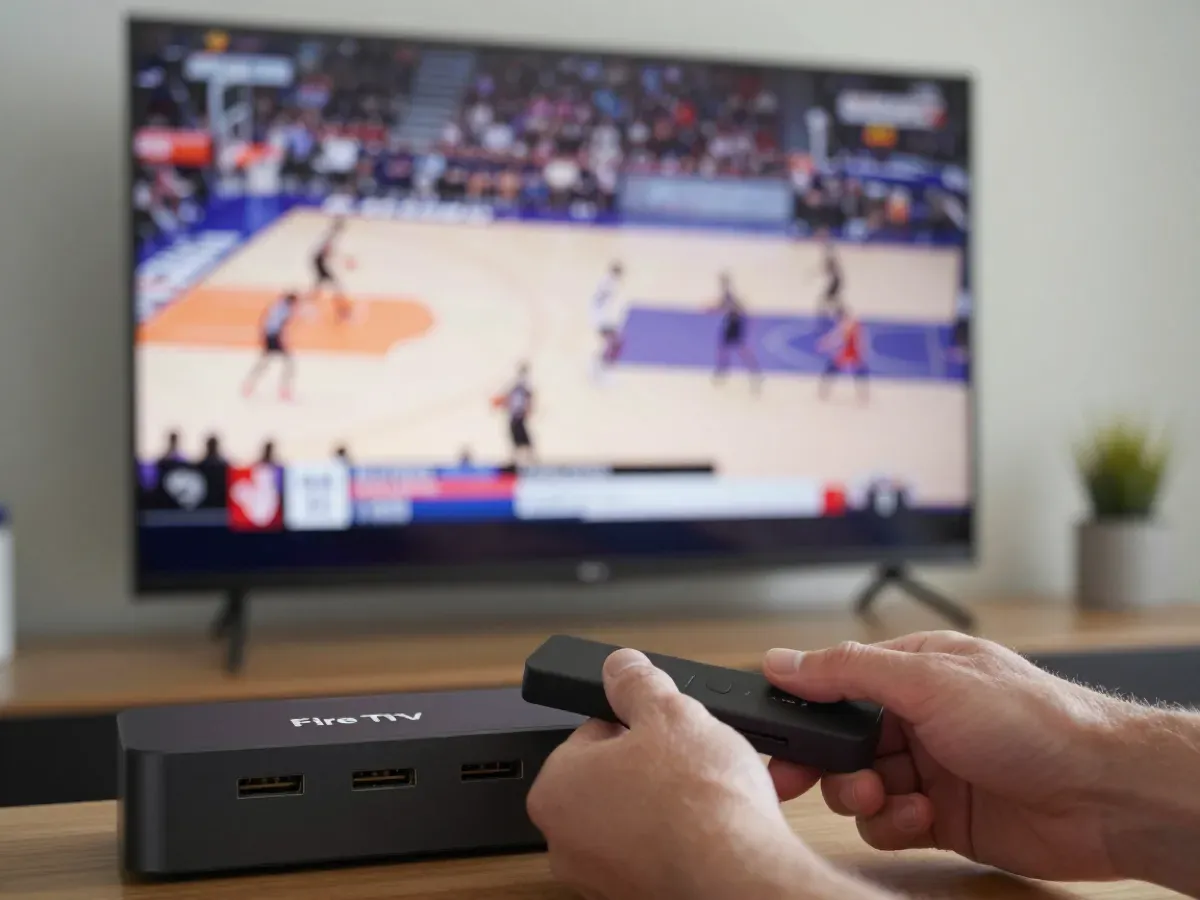
- 01
Open Settings
From the Fire TV home screen, move right to the gear icon to open Settings, then select My Fire TV.
- 02
Turn on developer options
Open About, select your Fire TV name 7 times until developer options appear, then go back.
- 03
Allow the Downloader app
Open Developer options, then Install unknown apps, and switch Downloader to On so it can install your player.
- 04
Add your login
Open the IPTV app you install in the next part, enter the login we sent and wait for channels to load.
Install IBO Player Pro or HotPlayer on Fire TV
Search the Amazon Appstore
Search IBO Player Pro or HotPlayer in the Appstore. If the app is listed, install it and skip to step 3.
Or install with Downloader
Open Downloader and enter the download link we send on WhatsApp for the app, then press Go and Install.
Open the app
Open the app, note the MAC address and device key if shown, and send them to us, or enter your Xtream login.
Best settings on Fire TV Stick
These settings give the most stable picture and a complete TV guide. Change them once after install; the app keeps them.
Menu names can differ slightly between app versions; ask us on WhatsApp if you cannot find one.
Troubleshooting on Fire TV Stick
Fire TV says the app is blocked from installing
Go to Settings, My Fire TV, Developer options, Install unknown apps, and turn Downloader on. If Developer options are missing, open About and select the device name 7 times to show them. Then open Downloader again and repeat the install; Fire TV now accepts the app.
IPTV buffers on my Fire TV Stick
Fire TV Sticks use Wi-Fi, so place the router closer or add an Ethernet adapter. Restart the stick by unplugging it for 30 seconds, close other apps and set the stream quality to Auto. If one channel still buffers, try its other quality version or tell us its name on WhatsApp.
The Fire TV Stick is slow or full
Clear the cache of apps you do not use in Settings, Applications, Manage installed applications. Uninstall old apps you no longer need, then restart the stick. Older Fire TV Sticks have little storage, so keeping only the apps you use makes IPTV start faster and run smoother.
Channels load but the guide is empty
In the app settings, reload the EPG and wait a minute. Check that the Fire TV time zone is correct in Settings, Preferences, Time zone. Restart the IPTV app after changing the time zone so it reloads the guide with the right times.
No sound on some channels
In the player settings, switch the decoder from hardware to software, or change the audio track. If you use a soundbar, set the Fire TV audio to PCM or Auto. If only one channel has no sound, tell us its name and we check the stream.
Questions about IPTV on Fire TV Stick
01What is the best iptv for firestick?
For iptv firestick viewers, the best setup is a stable service plus a good app. We recommend IBO Player Pro or HotPlayer on Fire TV with our plans. Test both with our free 2-hour test before you order. Our guide on this page shows each step.
02Is it hard to install IPTV on a Fire TV Stick?
No. It takes about 10 minutes: enable developer options, allow Downloader, install IBO Player Pro or HotPlayer and add your login. If a screen looks different, we help on WhatsApp. Most people finish on the first try, and you only do the setup once per stick.
03Does firestick iptv work in 4K?
Yes, on the Fire TV Stick 4K, Fire TV Stick 4K Max and Fire TV Cube, when the channel broadcasts in 4K and your internet gives about 25 Mbps. Older sticks play Full HD and HD. A wired Ethernet adapter helps keep 4K stable on busy evenings.
04Do I need a VPN on my Fire TV Stick?
No. A VPN is not needed for our service. It is VPN-compatible, but a VPN can lower speed, so try without one first. If you already use a VPN on your Fire TV, the service still works, but check that your speed stays above 10 Mbps for HD.
05Can I use one plan on a Fire TV and a phone?
Yes. Install the app on both. The number of devices that play at the same time depends on your plan: 1, 2 or 3 screens, or a custom number. Install the app on every device you like; only the number playing at the same moment counts.
Test it free on your device
We offer a free 2-hour test before you order. Ask for your test login, or go back to all setup guides.
- Free test: 2 hours
- Card
- PayPal