How to Install IPTV on Android TV and Android Box
A short guide for Android TV, Google TV, Nvidia Shield and Android boxes with the best app. Test it free for 2 hours.
- Free test: 2 hours
- 1 screen / 2 screens / 3 screens
- Card, PayPal
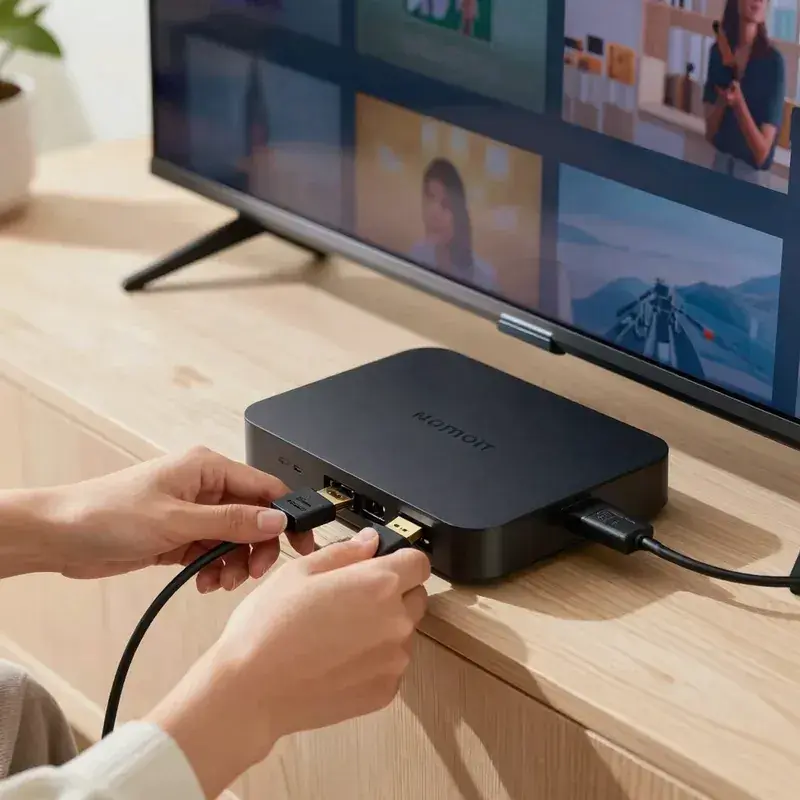
How to set up IPTV on Android TV
Android TV, Google TV televisions, the Nvidia Shield and Android boxes are some of the easiest devices for IPTV. You install one app from the Google Play Store and add the login we send you. It usually takes 5 to 10 minutes.
We recommend IBO Player Pro first and HotPlayer second. Both work well on Android TV, with a clear channel list, a full TV guide and stable playback, including 4K on devices that support it.
Have ready: your Android device connected to the TV, internet of about 10 Mbps for HD or 25 Mbps for 4K, a Google account signed in, and the login we send on WhatsApp or Telegram for your plan or your free 2-hour test.
The order is simple: install the app from the Play Store (or with Downloader if your box has a limited store), open it, send us the MAC and key or enter your Xtream login, and set the best settings. If a step looks different on your screen, send us a photo on WhatsApp and a real person guides you until the channels play.
What you need for Android TV
- Android TV, Google TV, Nvidia Shield or Android box
- Internet of about 10 Mbps for HD, 25 Mbps for 4K
- Google account signed in for the Play Store
- Your login from us: Xtream details or M3U link
- About 5 to 10 minutes
Step-by-step install on Android TV
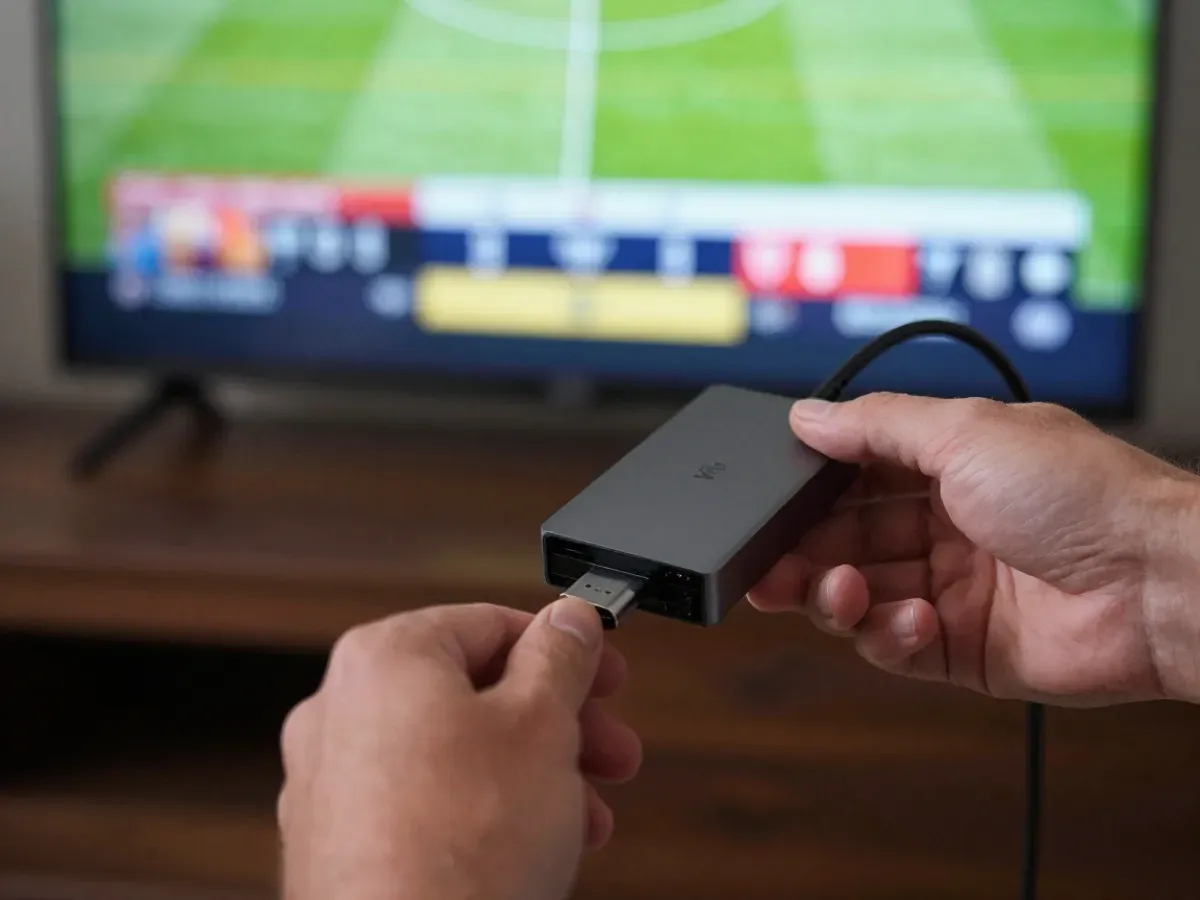
- 01
Open the Play Store
On the Android TV home screen, open the Google Play Store and sign in if asked.
- 02
Search the app
Search IBO Player Pro or HotPlayer and select Install. Wait until the install is complete.
- 03
Allow Downloader if needed
If the app is not in your store, install Downloader, then allow it in Settings, Security, Unknown sources.
- 04
Open the app
Open the app from the home screen and allow it to show on the TV when asked.
Best app on Android TV: IBO Player Pro or HotPlayer
Note the MAC and key
IBO Player Pro shows a MAC address and device key on the first screen. Send both to us on WhatsApp.
Or enter your Xtream login
In HotPlayer or other apps, choose Xtream Codes and enter the username, password and server URL we sent.
Load channels and guide
Restart the app, wait for channels and the TV guide to load, then mark your favorite channels.
Best settings on Android TV
These settings give the most stable picture and a complete TV guide. Change them once after install; the app keeps them.
Menu names can differ slightly between app versions; ask us on WhatsApp if you cannot find one.
Troubleshooting on Android TV
The app is not in my Play Store
Some boxes use a limited store. Install Downloader from the Play Store, allow it in Settings, Security, Unknown sources, then enter the app link we send you on WhatsApp. After the install, you can turn unknown sources off again for extra safety.
IPTV buffers on my Android box
Connect the box to the router with a cable if you can, restart the router and the box, and set stream quality to Auto. Close apps running in the background. If one channel still buffers, switch to its other quality version or send us the channel name on WhatsApp.
The app closes or freezes
Clear the app cache in Settings, Apps, then restart the box. If it continues, update the app or reinstall it; your login stays the same. If the app keeps closing after reinstalling, send us your box model and Android version on WhatsApp so we can recommend the best app.
The guide shows the wrong time
Set the right time zone on the box, for example Eastern or Pacific Time, then reload the EPG in the app settings. Restart the app after changing the time zone, and the guide shows the right start times for every program.
No sound on some channels
Change the decoder from hardware to software in the player settings, or pick another audio track. Check the HDMI audio output setting too. If only one channel has no sound, tell us its name on WhatsApp and we check that stream for you.
Questions about IPTV on Android TV
01Which Android devices work with your IPTV?
Android TV and Google TV televisions, Nvidia Shield, Android boxes, Android phones and tablets. On TV devices we recommend IBO Player Pro or HotPlayer. Android phones and tablets can use player apps from the Play Store, so the whole family watches on the devices they already have.
02Can I use IPTV on an Android phone?
Yes. Install a player app from the Play Store, add your login and watch at home or on the go with Wi-Fi or mobile data. On mobile data, choose a lower quality to save data, and switch back to HD when you are on Wi-Fi.
03Does IPTV work in 4K on Android TV?
Yes, on 4K Android TV devices like the Nvidia Shield, when the channel broadcasts in 4K and your internet gives about 25 Mbps. A wired connection to the router gives the most stable 4K picture on busy evenings, when many people stream.
04How long does the Android setup take?
About 5 to 10 minutes: install the app, send us the MAC and key or enter your Xtream login, then wait for the channels to load. Install the app before your free test or plan starts, so you only need to add the login when it arrives.
05Do you help if the Android setup fails?
Yes. Send us a photo of the screen on WhatsApp and we guide you step by step, 24/7. We can also assist remotely when needed. Most Android setups work on the first try, and our team is there if your box shows a different menu.
Test it free on your device
We offer a free 2-hour test before you order. Ask for your test login, or go back to all setup guides.
- Free test: 2 hours
- Card
- PayPal